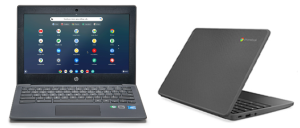
External Parts of a Chromebook
- Bezel / Display Bezel
- Frame for the Screen: The bezel acts as a frame for the screen, providing a border around the display panel and helping to secure it within the Chromebook’s housing.
- Protection: The bezel helps protect the edges of the screen from damage, such as impacts or scratches, enhancing the durability of the display assembly.
- Aesthetic Enhancement: The bezel contributes to the overall appearance of the Chromebook, giving it a finished and polished look while also complementing the design of the device.
- Component Housing: In some cases, the bezel may house components like the webcam, microphone, or ambient light sensor, integrating these elements into the Chromebook’s display assembly.
- Replacement Part: The bezel can be replaced if damaged or worn out, allowing for repairs to maintain the functionality and aesthetics of the Chromebook.
- In summary, the bezel of a Chromebook serves as a frame for the screen, provides protection, enhances aesthetics, may house components, and can be replaced as needed for maintenance and repair purposes.
- LCD Display / Screen
- Visual Output: The LCD display is responsible for providing visual output on the Chromebook, allowing users to view content, images, videos, and applications on the screen.
- Display Clarity: The LCD display ensures clarity and sharpness in the visual representation of content, offering a high-quality viewing experience for users.
- Touch Functionality (if applicable): In Chromebooks with touchscreens, the LCD display incorporates a digitizer that enables touch functionality, allowing users to interact with the device through touch gestures.
- Screen Protection: The LCD screen acts as a protective layer for the internal components of the Chromebook, shielding them from external elements and potential damage.
- User Interface: The LCD display serves as the primary user interface of the Chromebook, providing a platform for users to interact with the device, access applications, and navigate through settings.
A Chromebook’s display is composed of an LCD and a screen (sometimes glass). Depending on your Chromebook, it may also have a digitizer.
- LCD: Liquid-crystal display, or LCD, is a flat-panel display that uses liquid crystals in its primary operation. LCDs are extremely common today, and largely replaced light-emitting diode (LED) displays.
- Screen: The protective glass that covers the LCD
- Digitizer: If your Chromebook features a touch screen, it will have a digitizer which enables the touch screen functionality.
- Hinge Cap / Hinge Cover
- Structural Support: The hinge cap provides structural support to the Chromebook’s display assembly, helping to secure and stabilize the hinge mechanism that connects the display to the rest of the device.
- Aesthetic Enhancement: The hinge cap contributes to the overall appearance of the Chromebook, covering and protecting the hinge area while also adding to the device’s design aesthetics.
- Component Protection: The hinge cap helps protect the internal components of the hinge mechanism from dust, debris, and potential damage, ensuring smooth operation and longevity of the display assembly.
- Replacement Part: In case of damage or wear, the hinge cap can be replaced with OEM parts to restore the Chromebook’s appearance and functionality, allowing for repairs with confidence.
- Palm Rest
- Comfortable Typing Area: The palm rest provides a comfortable surface for users to rest their palms while typing on the Chromebook’s keyboard, enhancing ergonomics and reducing strain during extended use.
- Structural Support: The palm rest contributes to the structural integrity of the Chromebook, providing support for the keyboard and touchpad components and ensuring stability during typing and navigation.
- Aesthetic Enhancement: The design of the palm rest can enhance the overall appearance of the Chromebook, adding to its visual appeal and contributing to a cohesive look with the rest of the device.
- Component Housing: The palm rest may house components like the keyboard and touchpad, integrating these elements into a single unit that facilitates user interaction with the Chromebook
- the plastic surround of a Chromebook keyboard; protects the keyboard components. Not always separate from the keyboard, often replaced as an entire assembly
- Keyboard
- Typing and Input: The keyboard allows users to type text, numbers, and special characters into the Chromebook, enabling communication, data entry, and interaction with applications.
- Special Keys: Chromebook keyboards have unique keys like the Search key or Launcher key that provide quick access to search functions, app display, and interaction with Google Assistant.
- Keyboard Settings: Users can customize their keyboard settings on a Chromebook, such as remapping keys or adjusting key behaviors like right-click options based on personal preferences.
- Voice Typing: The keyboard can also be used to activate voice typing features on the Chromebook, allowing users to input text by speaking instead of typing manually.
- Keyboard Shortcuts: Chromebooks support various keyboard shortcuts that enhance productivity and efficiency, enabling users to perform tasks quickly and navigate the system effectively.
- In summary, the keyboard of a Chromebook facilitates typing and input, includes special keys for specific functions, allows for customization of settings, supports voice typing capabilities, and provides keyboard shortcuts for improved user experience and productivity.
- Touchpad / Trackpad – The trackpad on a Chromebook serves various functions to facilitate user interaction with the device (it allows for cursor movement, clicking, scrolling, gestures, highlighting text, zooming, and other functions that enhance user experience and productivity on the device):
- Cursor Movement: The trackpad allows users to move the cursor across the screen by placing a finger on the trackpad and moving it in any direction.
- Clicking: Users can click buttons, links, and make selections by pressing down on the trackpad until they feel or hear a click.
- Scrolling: The trackpad enables vertical and horizontal scrolling by using two fingers on the trackpad and moving them up and down or left and right, respectively.
- Gestures: Advanced features include using three fingers to reveal all available windows, swiping from left to right to go back in browsing history, and swiping from right to left to go forward in browsing history.
- Additional Functions: The trackpad can be used for highlighting text, zooming in and out, dragging items, scrolling browsing history, and performing various touch gestures for efficient navigation and interaction with the Chromebook.
- Bottom Plate / Bottom Plastic / Bottom Cover
- Structural Support: The bottom plate provides structural support to the Chromebook, helping to protect internal components and maintain the overall integrity of the device.
- Component Protection: It shields internal components from dust, debris, and potential damage, ensuring the longevity and proper functioning of the Chromebook.
- Aesthetic Enhancement: The bottom plate contributes to the overall appearance of the Chromebook, adding to its design aesthetics and providing a finished look to the device.
- In summary, the bottom plate of a Chromebook plays a crucial role in providing structural support, protecting internal components, enhancing aesthetics, and enabling repair and replacement when needed.
- Top Plate / Top Plastic / Top Cover
- The top cover of a Chromebook plays a crucial role in providing structural integrity, housing components, contributing to aesthetics, offering protection, and enabling repair and replacement when needed:
- Structural Integrity: The top cover provides structural integrity to the Chromebook, helping to protect the internal components and ensuring the overall durability of the device.
- Housing Components: The top cover houses various components such as the antenna module, webcam cable, and potentially other internal elements, keeping them securely in place within the Chromebook.
- Aesthetic Appeal: The top cover contributes to the aesthetic design of the Chromebook, enhancing its appearance and providing a sleek and cohesive look to the device.
- Protection: The top cover acts as a protective layer for the internal components of the Chromebook, shielding them from dust, debris, and potential damage from external factors.
- Repair and Replacement: In case of damage or wear, the top cover can be replaced with OEM parts to restore the Chromebook’s appearance and functionality, allowing for repairs with confidence.
- The top cover of a Chromebook plays a crucial role in providing structural integrity, housing components, contributing to aesthetics, offering protection, and enabling repair and replacement when needed:
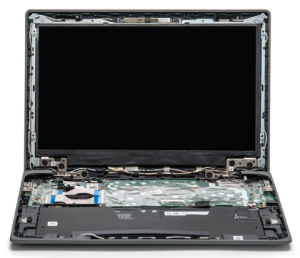
Internal Parts of a Chromebook
- Camera Module
- Webcam Functionality: The primary purpose of the camera module is to provide the Chromebook with a webcam, enabling users to capture photos, record videos, and participate in video calls and conferences.
- Video and Image Capture: The camera module contains the necessary components, such as the image sensor and lens, to capture video and still images, which can then be used by various applications on the Chromebook.
- Signal Transmission: The camera module is connected to the Chromebook’s motherboard via a ribbon cable, which transmits the video and audio signals from the camera to the device’s processor for processing and display.
- Power Supply: In some cases, the camera module may also be responsible for receiving power from the Chromebook’s internal power supply, ensuring the webcam can function properly.
- Compatibility: The camera module is designed to be compatible with the specific Chromebook model, ensuring it can be properly integrated and recognized by the device’s operating system (Chrome OS).
- The search results indicate that the camera module is an essential component of a Chromebook, as it enables the device’s webcam functionality. If the camera module becomes damaged or malfunctions, it can lead to issues with the Chromebook’s camera and related features.
- LCD Cable / Screen Ribbon Cable
- Connects the Display: The primary purpose of the screen ribbon cable is to connect the display (LCD screen) to the Chromebook’s motherboard.
- Transmits Display Signals: The ribbon cable carries the video and image signals from the Chromebook’s processor to the display, allowing the screen to show the output.
- Provides Power to the Display: In some cases, the ribbon cable may also be responsible for providing power to the display panel, ensuring it can function properly.
- Enables Screen Functionality: By connecting the display, the ribbon cable enables the full functionality of the Chromebook’s screen, allowing users to view content, use the touchscreen (if applicable), and interact with the device.
- Issues with the screen ribbon cable, such as a loose connection or damage, can lead to problems like screen flickering, partial display failure, or complete display malfunction on a Chromebook.
- Camera Cable / Camera Ribbon Cable
- Connects the Webcam: The primary purpose of the camera ribbon cable is to connect the webcam to the Chromebook’s motherboard, allowing the device to capture video and images.
- Enables Camera Functionality: By connecting the webcam, the ribbon cable enables the camera functionality on the Chromebook, allowing users to take photos, record videos, and use the camera for video conferencing.
- Carries Camera Signals: The ribbon cable carries the video and audio signals from the webcam to the Chromebook’s processor, enabling the camera to work properly.
- Provides Power: In some cases, the ribbon cable may also be responsible for providing power to the webcam, ensuring it can function correctly.
- Wifi Cables / Wifi Wires / Antennas
- The WiFi wires or antennas are responsible for providing wireless internet connectivity to the Chromebook. They enable the device to connect to WiFi networks and access the internet
- Enabling WiFi Functionality: The WiFi wires or antennas are essential components that allow the Chromebook’s wireless networking capabilities to function properly. Without them, the device would not be able to connect to the internet wirelessly.
- Hinges (metal)
- Display Attachment: The metal hinges are responsible for attaching the display (LCD screen) assembly to the bottom keyboard/chassis assembly of the Chromebook.
- Display Rotation: The hinges allow the display to rotate and pivot, enabling the Chromebook to be opened, closed, and adjusted to different viewing angles.
- Display Support: The hinges provide structural support to the display, ensuring it remains securely attached to the Chromebook’s body and does not become detached or misaligned.
- Durability: The metal construction of the hinges is designed to be durable and withstand the repeated opening and closing of the Chromebook’s display over its lifetime.
- The metal hinges are an essential component of a Chromebook, as they play a crucial role in the device’s functionality and overall structural integrity. If the hinges become damaged or wear out over time, it can lead to issues with the display, such as misalignment, instability, or even complete detachment from the Chromebook’s shell/body.
- Battery
- Power Supply: The battery provides power to the Chromebook, allowing it to operate without being plugged into a wall outlet. This gives the device portability and mobility.
- Charge Storage: The battery stores electrical charge, which can then be used to power the Chromebook’s components, such as the display, processor, and other peripherals.
- Runtime Extension: The battery extends the runtime of the Chromebook, enabling users to use the device for an extended period without needing to recharge it. This is one of the key advantages of Chromebooks.
- Power Management: The Chromebook’s operating system (Chrome OS) is designed to efficiently manage the battery’s power consumption, implementing features like power-saving modes to maximize battery life.
- Battery Health Monitoring: Chromebooks provide built-in tools and utilities to monitor the battery’s health, such as checking the battery’s charge capacity, discharge rate, and overall condition.
- Motherboard
- Central Processing: The mainboard houses the Chromebook’s central processing unit (CPU), which is responsible for executing instructions and performing computations to power the device’s operations.
- Memory and Storage: The mainboard provides the necessary interfaces and connectors for the Chromebook’s memory (RAM) and storage (SSD or eMMC) components, enabling data storage and retrieval.
- Input/Output Connectivity: The mainboard includes various ports and connectors, such as USB, HDMI, and audio jacks, allowing users to connect external devices and peripherals to the Chromebook.
- Wireless Connectivity: The mainboard typically integrates the necessary components, such as WiFi and Bluetooth chips, to provide wireless networking and communication capabilities for the Chromebook.
- Power Management: The mainboard is responsible for managing the power supply and distribution to the Chromebook’s components, including the battery charging and power-saving features.
- Operating System Integration: The mainboard is designed to be compatible with the Chromebook’s operating system, Chrome OS, ensuring seamless integration and functionality.
- Daughterboard
- USB Connectivity: Daughterboards in Chromebooks, such as the USB daughterboard, provide additional USB connectivity options for the device. They can be used to replace or repair damaged USB ports on the Chromebook, ensuring proper functionality for connecting external devices.
- I/O Expansion: Daughterboards can expand the input/output (I/O) capabilities of a Chromebook by providing additional ports or connectors beyond what is available on the mainboard. This allows users to connect more peripherals and accessories to their Chromebook.
- Component Replacement: Daughterboards can be used as replacement components for specific functions like USB connectivity or other I/O features in Chromebooks. They are designed to be compatible with certain Chromebook models for easy repair and maintenance.
- Repair and Maintenance: Daughterboards play a crucial role in repairing and maintaining Chromebooks by offering a way to address issues with specific components without having to replace the entire mainboard. This can help extend the lifespan of the device and ensure continued functionality.
- Wifi Module / Wifi Chip
- Wireless Connectivity: The WiFi chip enables the Chromebook to connect to wireless networks, allowing users to access the internet, send and receive data, and communicate over WiFi connections.
- Signal Reception and Transmission: The WiFi chip is responsible for receiving wireless signals from WiFi routers or access points and transmitting data back and forth, ensuring seamless communication between the Chromebook and the network.
- Network Compatibility: The WiFi chip is designed to be compatible with various WiFi standards and frequencies, ensuring that the Chromebook can connect to different types of wireless networks, including 2.4GHz and 5GHz bands.
- Speed and Performance: The WiFi chip plays a crucial role in determining the speed and performance of the Chromebook’s wireless connection. Higher-end WiFi chips can support faster data transfer rates and more stable connections.
- Speakers
- Listen to Audio: The speakers allow users to listen to sound effects, music, videos, and other multimedia content on their Chromebook without the need for external headphones or speakers.
- Participate in Video Calls: The speakers facilitate clear audio communication during video calls, online meetings, and virtual conferences on the Chromebook.
- Enhance Multimedia Experience: By producing sound output, the speakers enhance the overall multimedia experience on the Chromebook, making it more engaging and immersive for users, especially through ChromeOS’s Accessibility features.
- Provide System Feedback: The speakers can also provide system feedback through various sounds, alerts, and notifications to keep users informed about system events and activities.


